

Is there a way to adjust the brightness in 3D application (from the program)?
For example: in the options of modern games- brightness setting.
Adjust the brightness in 3D application
Adjust the brightness in 3D application
'Happiness for everybody, free, and no one will go away unsatisfied!'
SMsF town: http://www.youtube.com/watch?v=g6RRKYf_Pd0
SMf locations module (Ogre). Game video: http://www.youtube.com/watch?v=ZlhBgPJhAxI
SMsF town: http://www.youtube.com/watch?v=g6RRKYf_Pd0
SMf locations module (Ogre). Game video: http://www.youtube.com/watch?v=ZlhBgPJhAxI
Re: Adjust the brightness in 3D application
I know nothing about compositor. But thank you, I'll try to understand.
'Happiness for everybody, free, and no one will go away unsatisfied!'
SMsF town: http://www.youtube.com/watch?v=g6RRKYf_Pd0
SMf locations module (Ogre). Game video: http://www.youtube.com/watch?v=ZlhBgPJhAxI
SMsF town: http://www.youtube.com/watch?v=g6RRKYf_Pd0
SMf locations module (Ogre). Game video: http://www.youtube.com/watch?v=ZlhBgPJhAxI

Re: Adjust the brightness in 3D application
I couldn't find a brightness compositor in ogre's samples (maybe I'm just blind). So, I built one for you.
I'll post the compositor and with a little example after I get back from work.
Currently the compositor is in CG, but I can convert it to HLSL or GLSL if you don't want to use CG shaders.
I'll post the compositor and with a little example after I get back from work.
Currently the compositor is in CG, but I can convert it to HLSL or GLSL if you don't want to use CG shaders.
Re: Adjust the brightness in 3D application
Hi Samuel
Later, I'll send you a demo (program) - you look.
Thanks. I'll be wait.I'll post the compositor and with a little example after I get back from work.
I already use cg.dll for your material, so there is no need convert it.if you don't want to use CG shaders.
Later, I'll send you a demo (program) - you look.
'Happiness for everybody, free, and no one will go away unsatisfied!'
SMsF town: http://www.youtube.com/watch?v=g6RRKYf_Pd0
SMf locations module (Ogre). Game video: http://www.youtube.com/watch?v=ZlhBgPJhAxI
SMsF town: http://www.youtube.com/watch?v=g6RRKYf_Pd0
SMf locations module (Ogre). Game video: http://www.youtube.com/watch?v=ZlhBgPJhAxI
Re: Adjust the brightness in 3D application
Well, the compositor was pretty easy only took 5 minutes to create one. The problem I 'm having is updating the compositor's material script with new information during runtime.
Apparently compositors store the original material/shader information during startup and then only read from that.
So, we need a way to send the new data to the compositor otherwise you won't be able to adjust your brightness in game.
Here's the request I made, but there may be something already implemented that will solve our problem.
http://www.purebasic.fr/english/viewtop ... =3&t=59449
I need to do some more research on this while I wait for answers.
I'll post the compositor in a few minutes, but it will be limited to having preset parameters. Once we find a way to send parameters to the compositor's material script I'll update the code.
Apparently compositors store the original material/shader information during startup and then only read from that.
So, we need a way to send the new data to the compositor otherwise you won't be able to adjust your brightness in game.
Here's the request I made, but there may be something already implemented that will solve our problem.
http://www.purebasic.fr/english/viewtop ... =3&t=59449
I need to do some more research on this while I wait for answers.
I'll post the compositor in a few minutes, but it will be limited to having preset parameters. Once we find a way to send parameters to the compositor's material script I'll update the code.
Re: Adjust the brightness in 3D application
With this compositor you can add any color to your scene.
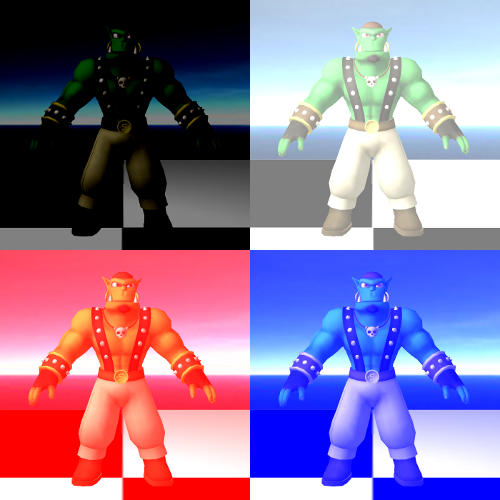
For the time being I'll keep the code in a download. I don't want to post it all just to find out that I'll need to do major changes to it in order to fix the issue I mentioned above.
EDIT:
Now supports updating. Read the lower posts for more info.
Brightness Compositor.zip
When we figure out how to update the compositor I'll post the code here.
As I said before for now this compositor will have to use preset values.
Here's how you edit the color you wish to add to the scene.
First open up BrightnessMaterial.MATERIAL (Notepad works fine for this).
Look for "param_named ColorValue float4 0.3 0.3 0.3 1.0" in the file.
The four values are a RGBA color value that can be anywhere between -1.0 and 1.0.
In this case we are adding some white to each pixel on the screen.
If we were to change it to 1.0 0.0 0.0 1.0 we would end up with a red scene like the bottom left portion of the picture above.
You can also take away color by using negative values. For example -0.3 -0.3 -0.3 1.0 will give you a darker scene like the top left portion of the picture.
I hope this helps a little and hopefully pretty soon we'll have a way to add values to it during runtime.
Just ask if you have any questions or need some changes done.

For the time being I'll keep the code in a download. I don't want to post it all just to find out that I'll need to do major changes to it in order to fix the issue I mentioned above.
EDIT:
Now supports updating. Read the lower posts for more info.
Brightness Compositor.zip
When we figure out how to update the compositor I'll post the code here.
As I said before for now this compositor will have to use preset values.
Here's how you edit the color you wish to add to the scene.
First open up BrightnessMaterial.MATERIAL (Notepad works fine for this).
Look for "param_named ColorValue float4 0.3 0.3 0.3 1.0" in the file.
The four values are a RGBA color value that can be anywhere between -1.0 and 1.0.
In this case we are adding some white to each pixel on the screen.
If we were to change it to 1.0 0.0 0.0 1.0 we would end up with a red scene like the bottom left portion of the picture above.
You can also take away color by using negative values. For example -0.3 -0.3 -0.3 1.0 will give you a darker scene like the top left portion of the picture.
I hope this helps a little and hopefully pretty soon we'll have a way to add values to it during runtime.
Just ask if you have any questions or need some changes done.
Last edited by Samuel on Thu May 29, 2014 8:00 pm, edited 2 times in total.
Re: Adjust the brightness in 3D application
Thanks to Comtois help and g-rom for his example. We now can send parameters to the compositor's material script during runtime.
I've already tested everything and so far no problems or errors.
Unfortunately, you'll have to wait a couple hours at least before I can post it.
At the moment I'm having a hard time staying awake, but I should be able to post it before work tomorrow.
If you like for the time being you can fiddle with the example above as the result looks the same either way.
I've already tested everything and so far no problems or errors.
Unfortunately, you'll have to wait a couple hours at least before I can post it.
At the moment I'm having a hard time staying awake, but I should be able to post it before work tomorrow.
If you like for the time being you can fiddle with the example above as the result looks the same either way.


Re: Adjust the brightness in 3D application
I did a test, it seems to work: Use [F5]/[F6]
brightnessCG.cg
brightnessMaterial.material
Brightness.compositor
Code: Select all
If InitEngine3D(#PB_Engine3D_EnableCG | #PB_Engine3D_DebugLog) = 0
  End
EndIf
If InitSprite() = 0
  End
EndIf
If InitKeyboard() = 0
  End
EndIf
If InitMouse() = 0
  End
EndIf

Enumeration
  #Font
  #Main
  #Help
  #Camera
  #Light
  #Texture
  #Material
  #Node
  #SinbadMesh
  #Sinbad
  #PlaneMesh
  #Plane
  #Effect
EndEnumeration

Structure Color
  r.f
  g.f
  b.f
  a.f
EndStructure

Declare DisplayHelp()

ExamineDesktops()
DesktopW = DesktopWidth(0)
DesktopH = DesktopHeight(0)

Global CPU$ = CPUName()
Global FirstFrame = 0

LoadFont(#Font, "Courier New", 10, #PB_Font_Bold)

If OpenWindow(#Main, 0, 0, DesktopW, DesktopH, "Compositor Effect")
  ;AntialiasingMode(#PB_AntialiasingMode_x6)
  If OpenWindowedScreen(WindowID(#Main), 0, 0, DesktopW, DesktopH, 0, 0, 0)

    Add3DArchive("/", #PB_3DArchive_FileSystem)
    Add3DArchive(#PB_Compiler_Home+"Examples/3D/Data/Packs/Sinbad", #PB_3DArchive_Zip)
    Parse3DScripts()

    CreateSprite(#Help, 300, 140)

    CreateTexture(#Texture, 256, 256)
    StartDrawing(TextureOutput(#Texture))
    Box(0,   0,   128, 128, RGB(0,0,0))
    Box(0,   128, 128, 128, RGB(255,255,255))
    Box(128, 0,   128, 128, RGB(255,255,255))
    Box(128, 128, 128, 128, RGB(0,0,0))
    StopDrawing()
    CreateMaterial(#Material, TextureID(#Texture))

    CreateNode(#Node, 0, 0, 0)

    CreatePlane(#PlaneMesh, 60, 60, 60, 60, 1, 1)
    LoadMesh(#SinbadMesh, "Sinbad.mesh")

    CreateEntity(#Sinbad, MeshID(#SinbadMesh), #PB_Material_None)
    CreateEntity(#Plane, MeshID(#PlaneMesh), MaterialID(#Material), 0, -5, 0)

    CreateCamera(#Camera, 0, 0, 100, 100)
    MoveCamera(#Camera, 0, 0, 20)
    CameraLookAt(#Camera, 0, 0, 0)
    CameraBackColor(#Camera, RGB(100, 100, 100))

    AttachNodeObject(#Node, CameraID(#Camera))

    CreateLight(#Light, RGB( 0, 0, 0), -5, 5, 5)
    SetLightColor(#Light, #PB_Light_DiffuseColor, RGB(200,200,200))
    SetLightColor(#Light, #PB_Light_SpecularColor, RGB(250,250,250))

    StartEntityAnimation(#Sinbad, "IdleTop", #PB_EntityAnimation_Manual)
    StartEntityAnimation(#Sinbad, "IdleBase", #PB_EntityAnimation_Manual)

    CreateCompositorEffect(#Effect, CameraID(#Camera), "Brightness")
    Define MyColor.Color
    MyColor\r = 1.0
    MyColor\g = 1.0
    MyColor\b = 1.0
    MyColor\a = 1.0
    CompositorEffectParameter(#Effect, 0, 0, "ColorValue", 7, @MyColor)
    Repeat
      Event=WindowEvent()

      If ExamineKeyboard()

        If KeyboardPushed(#PB_Key_F5)
          MyColor\r + 0.01
          MyColor\g + 0.01
          MyColor\b + 0.01
        ElseIf KeyboardPushed(#PB_Key_F6)
          MyColor\r - 0.01
          MyColor\g - 0.01
          MyColor\b - 0.01
        EndIf


        If KeyboardPushed(#PB_Key_Up)
          MoveCamera(#Camera, 0, 0, -0.2)
        ElseIf KeyboardPushed(#PB_Key_Down)
          MoveCamera(#Camera, 0, 0, 0.2)
        EndIf

        If KeyboardPushed(#PB_Key_Left)
          RotateNode(#Node, 0, -1, 0, #PB_Relative)
          CameraLookAt(#Camera, 0, 0, 0)
        ElseIf KeyboardPushed(#PB_Key_Right)
          RotateNode(#Node, 0, 1, 0, #PB_Relative)
          CameraLookAt(#Camera, 0, 0, 0)
        EndIf

        If KeyboardReleased(#PB_Key_H)
          If Help = 0
            Help = 1
          Else
            Help = 0
          EndIf
        EndIf

      EndIf

      AddEntityAnimationTime(#Sinbad, "IdleTop", LastFrame * 2)
      AddEntityAnimationTime(#Sinbad, "IdleBase", LastFrame * 2)
      LastFrame = RenderWorld()

      If Help = 0
        DisplayHelp()
      EndIf

      FlipBuffers()

    Until Event = #PB_Event_CloseWindow Or KeyboardPushed(#PB_Key_Escape)

  EndIf
EndIf

End

Procedure DisplayHelp()

  CurrentFPS = Engine3DFrameRate(#PB_Engine3D_Current)
  AverageFPS = Engine3DFrameRate(#PB_Engine3D_Average)
  MaximumFPS = Engine3DFrameRate(#PB_Engine3D_Maximum)
  MinimumFPS = Engine3DFrameRate(#PB_Engine3D_Minimum)
  CountTris=CountRenderedTriangles()
  StartDrawing(SpriteOutput(#Help))
  Box(0, 0, 300, 140, RGB(40,40,40))
  DrawingFont(FontID(#Font))
  DrawText(2, 2, CPU$, RGB(255,0,0), RGB(40,40,40))
  DrawText(2, 22, "Current FPS : "+Str(CurrentFPS), RGB(0,255,255), RGB(40,40,40))
  DrawText(2, 42, "Average FPS : "+Str(AverageFPS), RGB(0,255,255), RGB(40,40,40))
  DrawText(2, 62, "Maximum FPS : "+Str(MaximumFPS), RGB(0,255,255), RGB(40,40,40))
  DrawText(2, 82, "Minimum FPS : "+Str(MinimumFPS), RGB(0,255,255), RGB(40,40,40))
  DrawText(2, 102, "Rendered Triangles : "+Str(CountTris), RGB(0,255,0), RGB(40,40,40))
  DrawText(2, 122, "Press H to Hide/Show Help", RGB(255,155,255), RGB(40,40,40))
  StopDrawing()
  DisplayTransparentSprite(#Help,20,20)
  If FirstFrame=0
    Engine3DFrameRate(#PB_Engine3D_Reset)
    FirstFrame=1
  EndIf

EndProcedure
Code: Select all
void StdQuad_vp
(
	in float4 inPos : POSITION,
	out float4 pos : POSITION,
	out float2 uv0 : TEXCOORD0,
	uniform float4x4 worldViewProj)
{
	pos = mul(worldViewProj, inPos);
	inPos.xy = sign(inPos.xy);
	uv0 = (float2(inPos.x, -inPos.y) + 1.0f) * 0.5f;
}


sampler2D RT : register(s0);

float4 Brightness_ps( float4 pos : POSITION,
				uniform float4 ColorValue,
                      float2 iTexCoord : TEXCOORD0) : COLOR
{

float4 brightness = tex2D(RT, iTexCoord);
brightness  = brightness * ColorValue;
brightness.a = ColorValue.a;
	return brightness;
}Code: Select all
vertex_program StdQuad_Cg_vp cg
{
  	source BrightnessCG.cg
	entry_point StdQuad_vp
  	profiles vs_4_0 vs_2_0 vs_1_1 arbvp1

	default_params
	{
		param_named_auto worldViewProj worldviewproj_matrix
	}

}

fragment_program Brightness_Cg_FP cg
{
	source BrightnessCG.cg
	entry_point Brightness_ps
	profiles ps_4_0 ps_2_0 arbfp1
}

material BrightnessMaterial
{

	technique
	{

		pass
		{

			depth_check off

			vertex_program_ref StdQuad_Cg_vp
			{
			}

			fragment_program_ref Brightness_Cg_FP
			{
				param_named ColorValue float4 0.3 0.3 0.3 1.0
			}

			texture_unit RT
			{
				tex_coord_set 0
				tex_address_mode clamp
				filtering linear linear linear
			}

		}

	}

}Code: Select all
// Brightness effect
compositor Brightness
{
	technique
	{
		// Temporary textures
		texture rt0 target_width target_height PF_A8R8G8B8

		target rt0
		{
			// Render output from previous compositor (or original scene)
			input previous
		}

		target_output
		{
			// Start with clear output input none
			// Draw a fullscreen quad with the brightness image
			pass render_quad
			{
				// Renders a fullscreen quad with a material
				material BrightnessMaterial
				input 0 rt0
			}
		}
	}
}
Last edited by Comtois on Fri May 30, 2014 7:32 am, edited 1 time in total.
Please correct my english
http://purebasic.developpez.com/
http://purebasic.developpez.com/
Re: Adjust the brightness in 3D application
Thank you Samuel & Comtois.
Comtois, your code does not respond to F5-F6.
Comtois, your code does not respond to F5-F6.
OGRE EXCEPTION(6:FileNotFoundException): Cannot locate resource BrightnessCG.cg in resource group General or any other group. in ResourceGroupManager::openResource at OgreResourceGroupManager.cpp (line 756)
15:24:10: High-level program StdQuad_Cg_vp encountered an error during loading and is thus not supported.
OGRE EXCEPTION(6:FileNotFoundException): Cannot locate resource BrightnessCG.cg in resource group General or any other group. in ResourceGroupManager::openResource at OgreResourceGroupManager.cpp (line 756)
15:24:10: OGRE EXCEPTION(2:InvalidParametersException): Named constants have not been initialised, perhaps a compile error. in GpuProgramParameters::_findNamedConstantDefinition at OgreGpuProgramParams.cpp (line 1441)
15:24:10: Compiler error: invalid parameters in BrightnessMaterial.material(9): setting of constant failed
15:24:10: OGRE EXCEPTION(6:FileNotFoundException): Cannot locate resource BrightnessCG.cg in resource group General or any other group. in ResourceGroupManager::openResource at OgreResourceGroupManager.cpp (line 756)
15:24:10: High-level program Brightness_Cg_FP encountered an error during loading and is thus not supported.
OGRE EXCEPTION(6:FileNotFoundException): Cannot locate resource BrightnessCG.cg in resource group General or any other group. in ResourceGroupManager::openResource at OgreResourceGroupManager.cpp (line 756)
15:24:10: WARNING: the mesh 'M8' includes vertices with more than 4 bone assignments. The lowest weighted assignments beyond this limit have been removed, so your animation may look slightly different. To eliminate this, reduce the number of bone assignments per vertex on your mesh to 4.
15:24:10: WARNING: material BrightnessMaterial has no supportable Techniques and will be blank. Explanation:
Pass 0: Vertex program StdQuad_Cg_vp cannot be used - compile error.
15:24:10: WARNING: material BrightnessMaterial has no supportable Techniques and will be blank. Explanation:
Pass 0: Vertex program StdQuad_Cg_vp cannot be used - compile error.
15:24:10: CompositorChain: Compositor Brightness has no supported techniques.
'Happiness for everybody, free, and no one will go away unsatisfied!'
SMsF town: http://www.youtube.com/watch?v=g6RRKYf_Pd0
SMf locations module (Ogre). Game video: http://www.youtube.com/watch?v=ZlhBgPJhAxI
SMsF town: http://www.youtube.com/watch?v=g6RRKYf_Pd0
SMf locations module (Ogre). Game video: http://www.youtube.com/watch?v=ZlhBgPJhAxI
Re: Adjust the brightness in 3D application
Samuel
I used your script in the program - and it works. Thanks.
By the way, it greatly increases the load on the PC?


I used your script in the program - and it works.
Thanks.By the way, it greatly increases the load on the PC?
'Happiness for everybody, free, and no one will go away unsatisfied!'
SMsF town: http://www.youtube.com/watch?v=g6RRKYf_Pd0
SMf locations module (Ogre). Game video: http://www.youtube.com/watch?v=ZlhBgPJhAxI
SMsF town: http://www.youtube.com/watch?v=g6RRKYf_Pd0
SMf locations module (Ogre). Game video: http://www.youtube.com/watch?v=ZlhBgPJhAxI
Re: Adjust the brightness in 3D application
@Comtois
Thank you for the help. Your code seems to work fine over here.
I updated my download with the new code you posted.
Brightness Compositor.zip
@AndyLy
Are you using an older computer? What type of graphics card do you have?
Thank you for the help. Your code seems to work fine over here.
I updated my download with the new code you posted.
Brightness Compositor.zip
@AndyLy
Are you using an older computer? What type of graphics card do you have?
Re: Adjust the brightness in 3D application
Samuel
Thanks, this version works well!
Thanks, this version works well!
My computer is not old, I'm asking just for information.Are you using an older computer?
'Happiness for everybody, free, and no one will go away unsatisfied!'
SMsF town: http://www.youtube.com/watch?v=g6RRKYf_Pd0
SMf locations module (Ogre). Game video: http://www.youtube.com/watch?v=ZlhBgPJhAxI
SMsF town: http://www.youtube.com/watch?v=g6RRKYf_Pd0
SMf locations module (Ogre). Game video: http://www.youtube.com/watch?v=ZlhBgPJhAxI
Re: Adjust the brightness in 3D application
thanks Samuel and Comtois, very good possible usage in Art scenes demos, i like when we enable shadows such as WorldShadows(#PB_Shadow_Additive) increase the light (F5) the shadow disappears gradually, decrease light (F6) the shadow will lost in the darkness.
Re: Adjust the brightness in 3D application
I'm sorry it seems I misunderstood.AndyLy wrote: My computer is not old, I'm asking just for information.
This compositor is about as basic as they get. Even older computers should be able to run this without slowing down.
Compared to the normal mapping shader you've been using this is nothing.
@applePi
It does look cool when shadows are enabled.
